How do I redeem an OurCal offer code?
If you've received an OurCal offer code, it will come with a redemption link. Just tap or click the link and follow the prompts — Apple handles the redemption for you.
What happens next depends on your subscription status:
New to OurCal
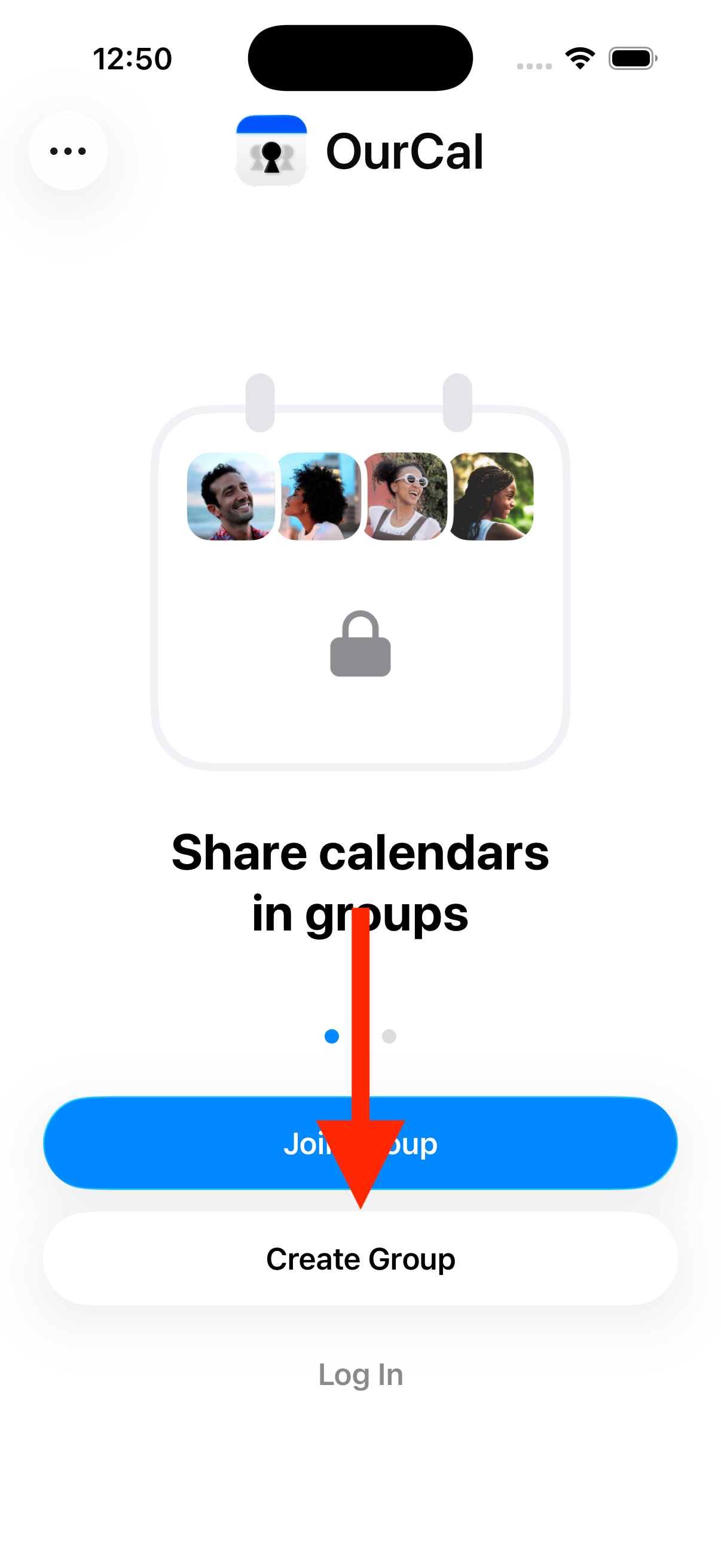
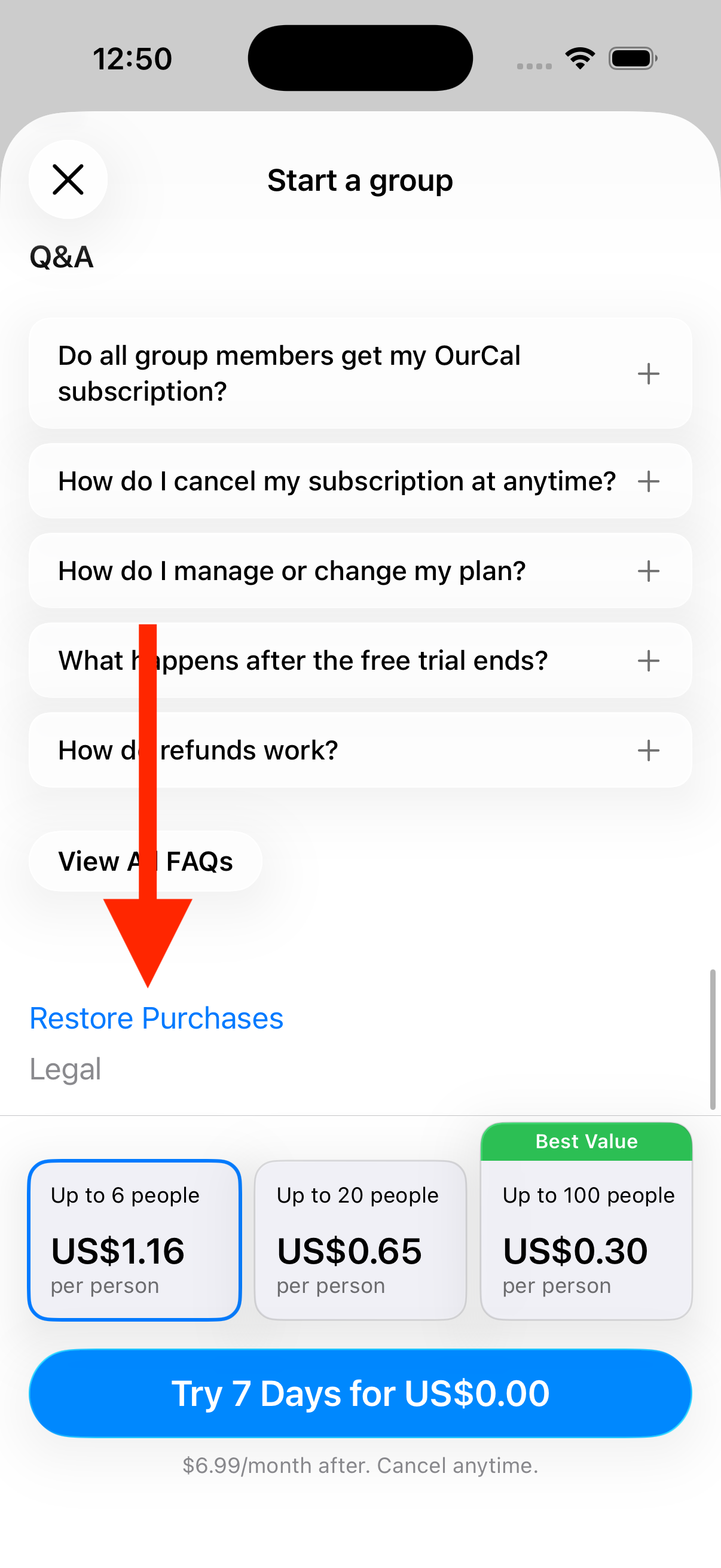
If you don't have OurCal installed yet, you'll be prompted to download the app first. Once downloaded, open OurCal, tap Create Group, and on the "Start a group" screen that appears, scroll to the bottom and tap Restore Purchases. This will sync your subscription and unlock OurCal.
Existing subscriber
If you're already paying for OurCal, your offer code will be applied automatically. You won't be charged during the promotional period.
Expired subscriber
If your subscription has expired, after redeeming the offer code, open OurCal and tap Restore Purchases on the paywall to sync your subscription.
After the offer period
At the end of the free period, the subscription will not auto-renew — you won't be charged. If you'd like to continue using OurCal, you can subscribe from within the app.
More in Subscriptions
- Am I locked in if I start using OurCal?
- Are annual subscriptions still available?
- How do I move my OurCal subscription to a different group?
- Can I cancel anytime?
- How do I cancel my subscription anytime?
- Do all group members get my OurCal subscription?
- Do I need to pay for everyone using the calendar?
- How do I change my payment method?