How do I hide or filter members in the calendar?
OurCal's calendar shows all your events together in a single, vertically scrolling view — differentiated by calendar colour and the colours of scheduled members.
To focus on specific people, tap the filter icon in the bottom right of the calendar screen to open the Filters view.
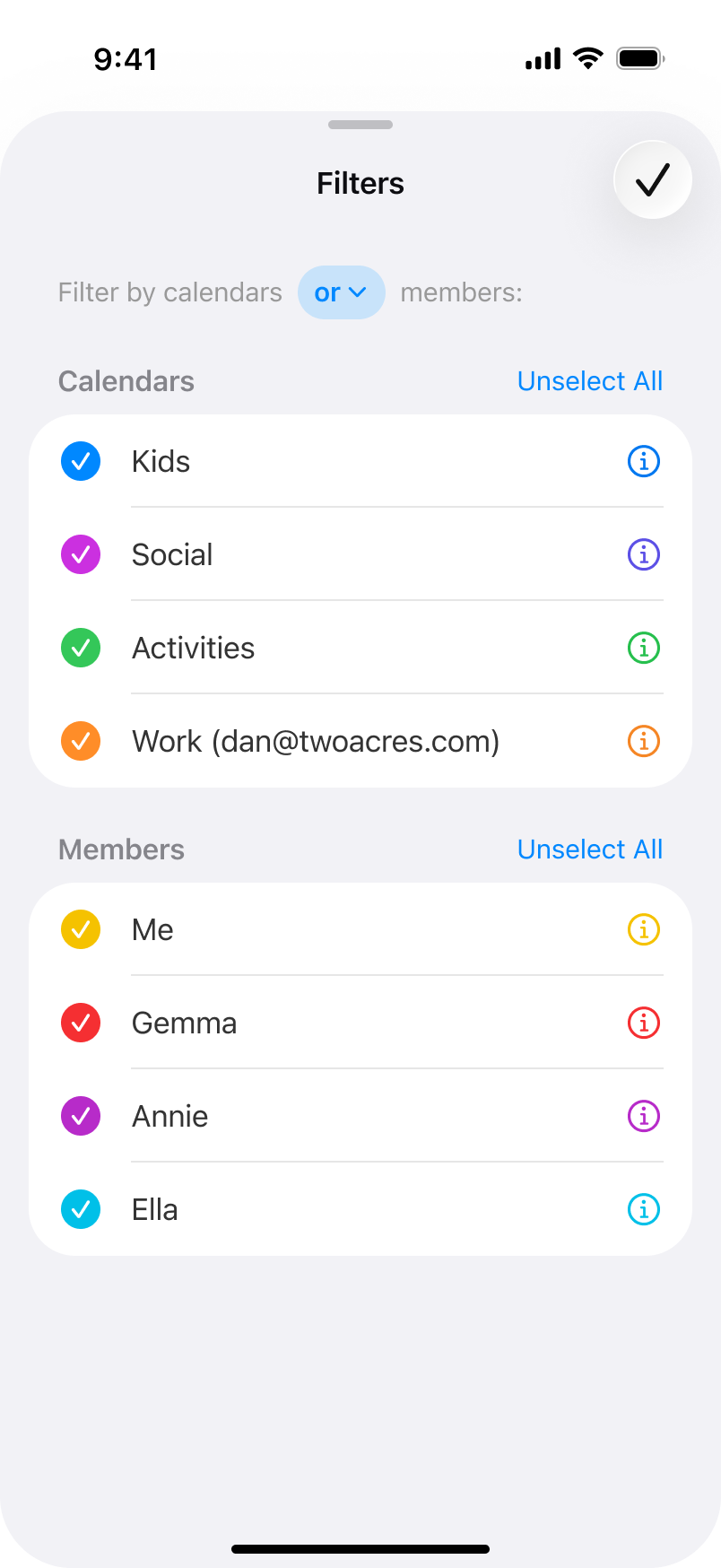
From here you can filter by members, calendars, or both:
Filter by members only
Tap "Deselect All" under the Calendars section so no calendars are ticked. Then select only the members whose events you want to see.
Filter by calendars only
Tap "Deselect All" under the Members section so no members are ticked. Then select only the calendars you want to see.
Mix and match with "and" or "or" mode
Select the calendars and members you want, then tap the "or" dropdown to choose your filter mode. "Or" shows events that match either the selected calendars or the selected members. "And" shows only events that match both — e.g. events in the "Kids" calendar that are also assigned to "Annie".
Tap the tick in the top right to apply your filters.
More in Calendars
- Can I share different calendars with different groups?
- Can other group members see all of my events?
- How do I change my default calendar in OurCal?
- How do I configure OurCal widgets on my Home Screen or Lock Screen?
- How do I change times in OurCal to show in 12 hour or 24 hour formats?
- How do I hide the details of events in OurCal?
- How do I add OurCal's calendar widgets to my Home Screen or Lock Screen?
- How do I create a new calendar?